I use Virtualbox for all of my virtual machining needs. For some of my guest vms I like to use “host” networking, meaning that essentially the vm will share the hosts network adapter using a bridge and a TAP interface on the host computer to perform its virtual networking magic. However, it can be a little more tricky to setup than using Virtualbox’s other type of networking, NAT.
However, with two packages “bridge-utils” and “uml-utilities” the chore of setting up a bridge interface on Ubuntu (and maybe even Debian) is almost pain free.
DISCLAIMER: This might not work for your particular setup or distribution. If it does, you can shout woo-hoo and thanks the good folks at Debian and Ubuntu. If it doesn’t work, then consult this file:
zcat /usr/share/doc/bridge-utils/README.Debian.gz | less
Now, on to the good stuff.
– First we need to install the necessary packages:
sudo aptitude install bridge-utils uml-utilities
– Edit your /etc/network/interfaces file to look something like:
auto lo
iface lo inet loopback
auto tap0
iface tap0 inet manual
auto br0
iface br0 inet dhcp
up ifconfig $IFACE 0.0.0.0 up
down ifconfig $IFACE down
tunctl_user dheebner bridge_ports eth0 tap0
auto eth0
iface eth0 inet manual
– When the system is back up, drop to the terminal and issue an “ifconfig /all” and see if your bridge (br0) and tap interface (tap0) are listed.
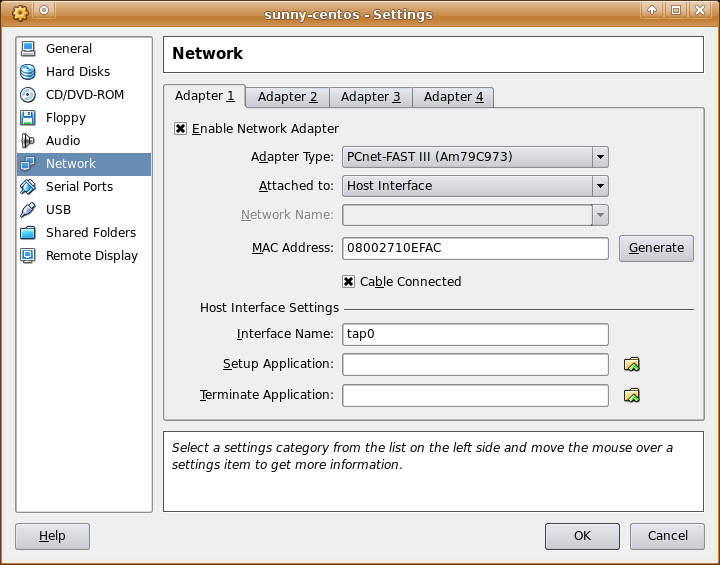
– Fire up Virtualbox, set your network interface to “Attached to: Host” and fill in “Interface Name: tap0” (unless you named your tap interface something else.

- Virtualbox Network Configuration
– If you are going to use Vurtualbox as a non-root user (recommended) then you will need to give the proper permssions to the device file “/dev/net/tun” and/or add your name to the proper groups:
sudo usermod -a -G vboxusers username
sudo usermod -a -G uml-net username
– Fire up your virtual machine and see if you can reach the network.
Yay!